
Introduction
To ensure a successful installation of the connector, we strongly recommend enlisting the expertise of a technical resource with a proven track record of SFCC B2C skills and Akeneo PIM knowledge. This individual or team should have a demonstrated proficiency in both SFCC Commerce and the specifics of the connector to carry out the installation effectively. Their experience and knowledge will be instrumental in setting up the connector correctly and maintaining its optimal performance. For added convenience and to streamline the installation process, Akeneo offers a Professional Service Assistance option. Please reach out to your Customer Success Manager (CSM) for further details and assistance.
Before getting access to the SFCC connector, please check the what you need to know before using the connector section.
Prerequisites and access
Akeneo Connector for SFCC (Enterprise Edition) is compatible with Akeneo PIM Enterprise Edition (please refer to the compatibility and pre-requisite article for more information). This version is officially supported and maintained by Akeneo.
To acquire the Enterprise Edition of the connector, please reach out to us through the app store or directly by contacting your dedicated CSM. We will provide you with access to our Private GitHub repository, where the supported version of the connector is hosted. Our Akeneo teams will guide you through the installation process via our Partner Portal and assist you in leveraging Akeneo Support for your enterprise needs.
Downloading the code from the Portal
The Akeneo Connector for SFCC B2C code access is hosted on the Project Console of the Akeneo portal. Before you can begin the installation, make sure you meet the following project management prerequisites:
- Ensure that you have access to the connector within the Akeneo Portal (if you have not already done so).
- Create a developer profile within your organization who will be responsible for the installation. Grant this developer access to the Project Console.
Your CSM has to activate the connector access for this project for you to be able to see the download link.
Once you click, you will have to select the archive version that you want to install.
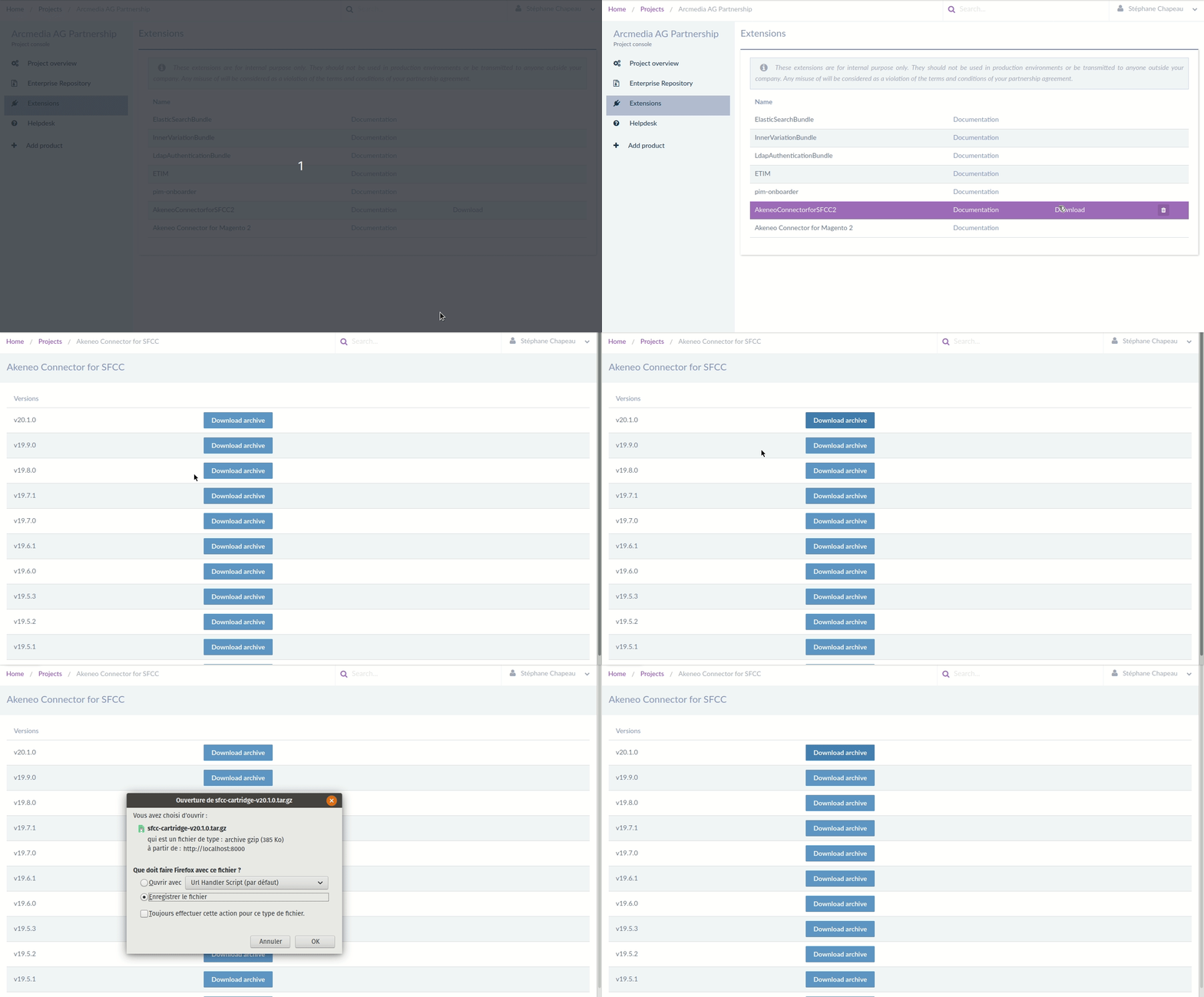
We strongly recommend that you get the latest version.
Configuring your PIM API in Akeneo
Before setting up the Akeneo Connector for SFCC, make sure the prerequisites are covered. For the API configuration, you first need to generate a "client ID" and “secret” in the PIM to enable the API connection.
Please refer to our specific documentation to do so.
You will be given the following items:
- Your PIM URL (ex: https://mypim.cloud.akeneo.com)
- Your PIM API Client ID and Secret
Your PIM user who will be dedicated to the use of the API (Username and Password). Make sure you save them, as you'll need them later.
The connector handles the API authentication itself: it requests and renews the access token from these credentials, and stores it in the AkeneoToken custom object. You do not need to generate a token manually.
Firewall requirements
There is one firewall requirement on the Akeneo instance. The merchant must provide their outgoing IP address to Akeneo, to be configured in the API environment so that the SFCC environment is whitelisted.
Installing the connector on SFCC B2C
Upload the cartridge on SFCC
For previous version than 21.0.0 , the name is bc_akeneo instead of bm_akeneo
WebDAV
Upload cartridges to WebDAV using any method of your choice.

Salesforce Commerce Cloud Studio Workspace example
Alternatively, upload the bm_akeneo cartridge to the Salesforce Commerce Cloud Studio Workspace:
- Open Salesforce Commerce Cloud Studio.
- Click on File > Import > General > Existing Projects into Workspace.
- Go to the directory where you saved the bm_akeneo cartridge.
- Click on Finish.
- Select OK when you are ready to link the cartridge to the sandbox.
Set up the cartridge path
- Go to Business Manager Menu > Administration > Sites > Manage Sites
- Click on Business Manager in the Manage the Business Manager site text
- Prepend "bm_akeneo:" to the "Cartridges" field
- Click on Apply button

Import the metadata
For the Akeneo Connector for SFCC to work, the following object structures (metadata) need to be imported and configured in the Business Manager.
Follow the steps below:
- In the cartridge bundle, find metadata/simple-akeneo-workflow_site-import and compress it to generate the simple-akeneo-workflow_site-import.zip file.
- Go to the Business Manager Menu: Administration > Site Development > Site Import & Export
- Under Import > Upload archive: Make sure that the radio button with label Local is enabled (otherwise click on the radio button to enable it).
- Click on the Choose File input field, select the simple-akeneo-workflow_site-import.zip file from the open dialog box, and click on Upload.

- After finishing the upload, from the Archives list, click on the radio button corresponding to simple-akeneo-workflow_site-import.zip and click on Import.
- Click on the OK button in the confirmation box asking "Are you sure that you want to import the selected archive?"
Known issue
If you encounter data errors related to job steps after importing metadata, we recommend switching to a different code version (under BM > Administration > Site Development > Code Deployment) and then switching back to the original code version that you are using to install the product. This workaround has been found to resolve the issue effectively.
Add the cartridge to your sites
- Go to the Business Manager Menu: Administration > Sites > Manage Sites
- Select your site
- Click on the Settings tab
- Append bc_akeneo (or bm_akeneo depending on the cartridge version) to the Cartridges field
- Click on Apply
- Repeat steps 2 to 5 for all sites, including the Business Manager one
Configure OCAPI (Open Commerce API)
The Akeneo Connector for SFCC uses OCAPI (Open Commerce API) calls for its operations. For the connector to function properly, OCAPI settings have to be adjusted in Business Manager by following these instructions.
- Go to Administration > Site Development > Open Commerce API Settings
- Select the type as Data and the context as Global (organization-wide)
- Locate the text file Akeneo-OCAPI-Data-Config.txt in the documentation folder of the Akeneo SFCC Connector cartridge package. This file contains the OCAPI Data configuration for the connector.
- Copy the configuration from the Akeneo-OCAPI-Data-Config.txt file and paste it into the Open Commerce API Settings in Business Manager. If you plan to keep your existing OCAPI configuration, you may want to add the connector's OCAPI configuration at the end of your existing one instead of replacing it entirely.
- Replace "PLACEHOLDER_OCAPI_CLIENT_ID" with your OCAPI client ID
- Click on the Save button
Establish the connection within the connector configuration panel
In the connector configuration page, fill in the parameters below with the PIM information collected above:
| Connector parameter | PIM information |
|---|---|
| Akeneo SFCC Connector's Cartridge Version | Code version of the cartridge in the Akeneo GitHub repository. This is for the merchant's reference when communicating with the Akeneo support team. This is not a configuration field. |
| PIM Edition (akeneoPIMEdition) | User’s Akeneo PIM edition |
| OCAPI Client ID (ocapiClientID) | User's OCAPI (Open Commerce API) Client ID |
| OCAPI Client Secret (ocapiClientSecret) | User's OCAPI (Open Commerce API) Client Secret |
| Akeneo Client ID (akeneoClientID) | Akeneo API Client ID. User's Client ID in the Akeneo PIM API, from the CONNECT / CONNECTION SETTINGS / SFCC page of the PIM Dashboard |
| Akeneo Secret (akeneoSecret) | API Secret. User's secret key in the Akeneo PIM API, from the CONNECT / CONNECTION SETTINGS / SFCC page of the PIM Dashboard |
| Akeneo Login (akeneoLogin) | PIM user username. User's login ID in the Akeneo PIM API |
| Akeneo Password (akeneoPassword) | PIM user password. User's login password in the Akeneo PIM API |
| Akeneo Service General URL (akeneoServiceGeneralUrl) | PIM URL. The URL of the Akeneo instance. Do not end the URL with a "/", the connection will not work. |
| SFCC Master Catalog ID (akeneoProductsCatalogID) | The ID of the catalog all the products are sourced from, or the catalog you wish to download media files from via the Akeneo APIs. Make sure the catalog is created beforehand, even if it is empty: specifying the ID of a non-existent catalog can lead to job failures. |
No automatic reconnection
In the case of Akeneo API unavailability, there is no automatic procedure to reconnect. However, the connector will try three times to reach the API before stopping.
Next steps
Fill in the remaining connector parameters in Site Preferences. See Configuration panels of the connector and the catalog configuration articles.
Schedule the import jobs and start the synchronization with your Akeneo instance. See Synchronization: load and transfer data.
To enable API communication logging, adjust log levels, or understand how the connector stores its data — including the AkeneoToken custom object — see Monitor data, logs and errors.
If you are installing the connector on an SFCC instance that already holds products or categories managed outside Akeneo, see Installing alongside an existing SFCC catalog.
Please also read the additional documents in the "documentation" folder of the GitHub repository for more technical information about the Akeneo Connector for SFCC.