
When your Akeneo PIM changes, a synchronization updates the Attributes and Families of your workflow. It does not change your step settings or your connector overrides. SDM lists the settings that no longer match your PIM, explains what each one does to your jobs, and fixes it in one click.
Example: you remove the Material Attribute from the Lamps Family in your PIM. Your Normalisation step still checks Material on Lamps products, so Lamps products get a rule on an empty column. SDM shows this on a card, with a Remove from step button.
Before you start
- You need the organization admin role. The Settings menu of a workflow is only visible to organization admins.
- SDM never changes your PIM. Every action on this page changes SDM settings only.
Find the settings to review
SDM checks your workflow after each synchronization and each time you save a step. When some settings name Attributes or Families your workflow no longer has, a banner shows on the Jobs page of the workflow.

The banner is orange when some settings need a review. It is red when the synchronization is blocked.
- Click Review stale attributes in the banner. You can also go to Settings > Akeneo PIM Connector > Sync tab.
- Scroll to the Actions needed section.
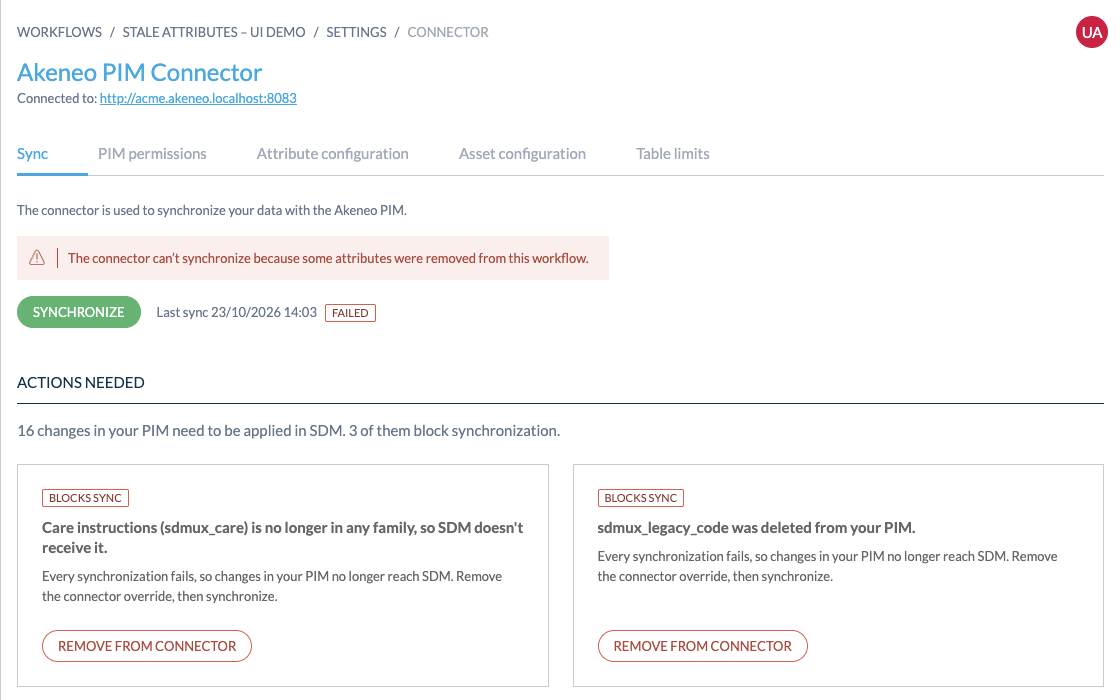
A workflow without a connector shows the Actions needed section on the Settings > Connector page too. Step settings can still name Attributes the workflow no longer has.
Read a card
Each card covers one Attribute (or one whole Family) and one action. The most urgent cards come first.
- The badge: Blocks sync means every synchronization fails until you act. To review means the synchronization works, but some jobs no longer run as you configured them.
- The title: what changed in your PIM, for example "Material (material) was removed from Lamps."
- The text: what this does to your jobs, step by step, and what the button changes.
- The button: the action SDM applies to every setting on the card.
Apply the change
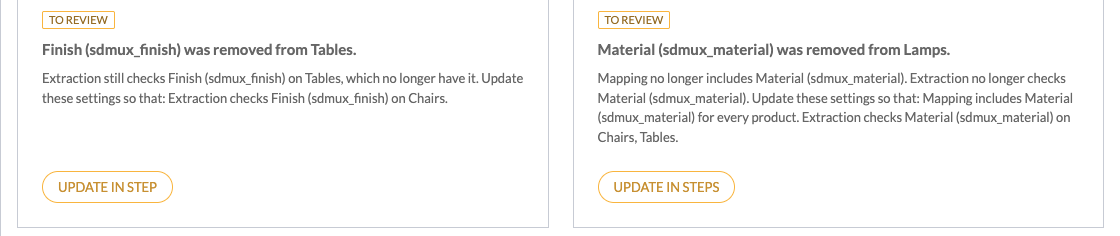
- Read the card text. It tells you what each step does after the change, for example "Extraction checks Material on Chairs, Tables."
- Click the button on the card.
- Read the confirmation. It names the steps SDM changes.
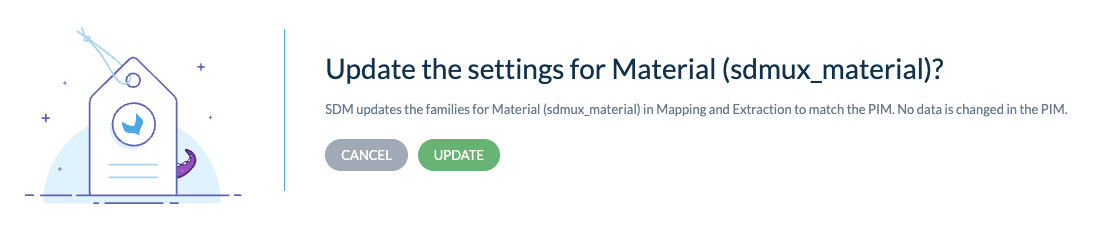
- Click Remove or Update to confirm.
The card disappears, and SDM checks your workflow again.
What each button does
| Button | When you see it | What SDM changes |
|---|---|---|
| Remove from connector | A connector override names an Attribute your PIM no longer sends. The synchronization fails. | Removes the override from the connector. Then click Synchronize to unblock the connector. |
| Remove from step / Remove from steps | A step still checks an Attribute your workflow no longer has, or checks it on Families that no longer have it. The AI of a step still reads an Attribute your workflow no longer has. | Removes these rules from the steps named on the card. |
| Update in step / Update in steps | The Attribute moved to other Families, and a step setting stopped working. | Updates the Families in the step settings, so the step works as before. A setting left without Families is removed. The card and the confirmation say so. |
| Open step name | The AI of a step reads a column that an earlier step no longer passes on. | Nothing. It opens the AI configuration of the step. A banner there names the inputs to remove or replace. |
After Remove from connector, a banner reminds you to synchronize. Click Synchronize on the Sync tab: your PIM changes reach SDM again only after a successful synchronization.
Good to know
- Only settings that change a job are listed. If a setting no longer matches your PIM but your jobs still run the same way, SDM leaves it as it is.
- The list is always up to date. If someone else changed a setting, or a synchronization ran after you opened the page, SDM skips the settings that already changed and shows the new list.
- SDM keeps the previous settings. Each change is saved in the history of the step or the connector. To undo a change, contact your SDM contact or Akeneo Support. They can restore the previous settings.