

To control what recipients see in a shared catalog, you configure filters in the Content tab of the Shared Catalogs export profile in Akeneo PIM. Two types of filters are available:
- Filter the product values -- define which channel, locales, and attributes are exported to the catalog.
- Filter on products -- define which products appear in the catalog, based on family, status, completeness, category, quality score, or identifier.
This article covers each filter in detail.
Filter the product values
Filter on a channel
Each shared catalog can only be linked to one channel. Select the channel that contains the products you want to display in your shared catalog.
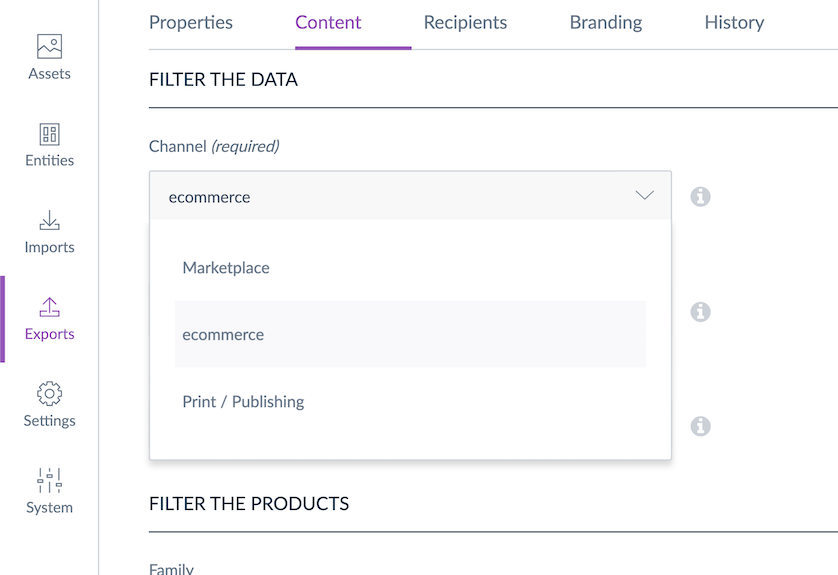
The screenshot above shows the Channel field in the Shared Catalogs Content tab, with a single channel selected from a dropdown list.
Filter on one or more locales
By default, all activated locales for the selected channel are included. You can narrow the selection to one or more locales depending on your shared catalog needs.
Remove a locale
Click the small cross next to the locale code.
Add a locale
Start typing your locale code or label in the field. The PIM displays matching locales automatically. Click the locale to add it.
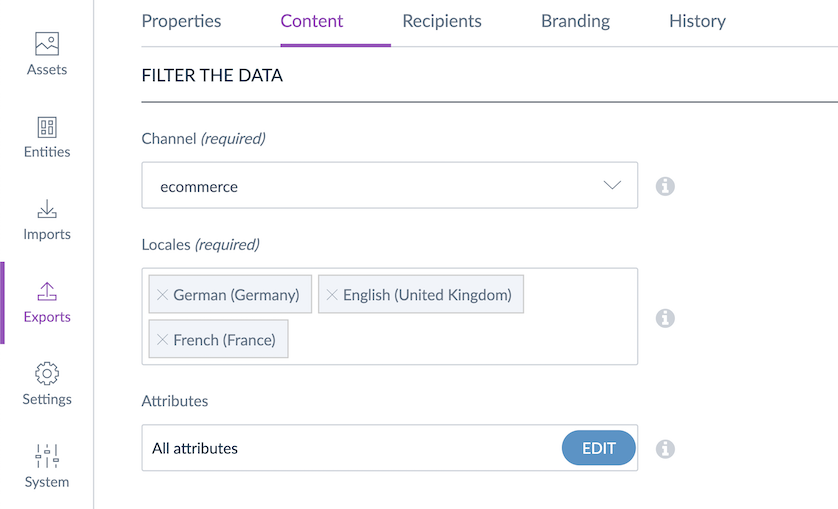
The screenshot above shows the Locale field with locale codes selected. A cross icon appears next to each code to allow removal.
Filter on attributes
In the Content tab, click Edit next to the Attributes field to open the Attribute Selection modal.
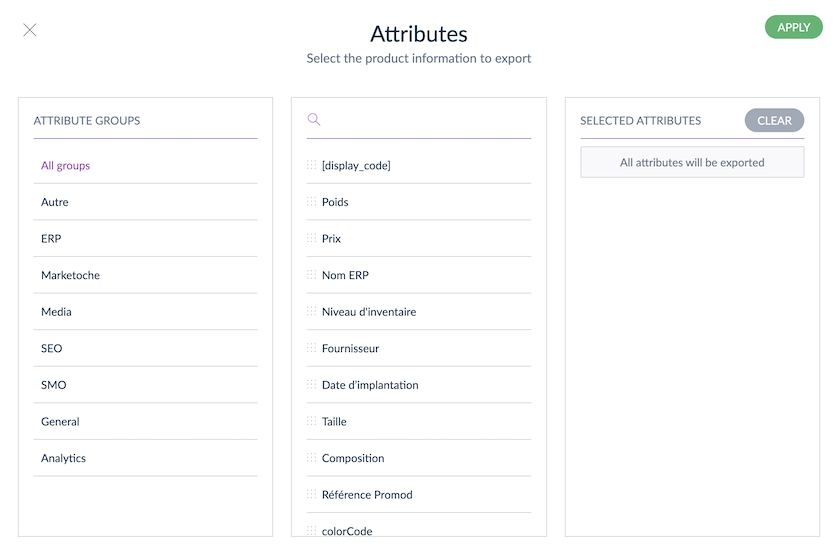
The screenshot above shows the Attribute Selection modal with three panels: attribute groups on the left, attributes in the selected group in the middle, and the current attribute selection on the right.
The modal has three panels:
- Left panel -- lists available Attribute Groups.
- Middle panel -- shows the Attributes belonging to the selected group.
- Right panel -- shows your current attribute selection for this shared catalog.
By default, all attributes are exported to the shared catalog.
To customize your attribute selection:
- In the left panel, select a specific Attribute Group or All groups. The attributes in that group appear in the middle panel.
- Drag and drop the attributes you want from the middle panel to the right panel.
The order of attributes in the catalog matches the order set in the Attribute Groups settings. If attributes have never been manually sorted in the PIM settings, Attribute Groups and Attributes in Shared Catalogs are sorted alphabetically.
To clear your selection, click Clear. To save it, click Apply. The Attributes field displays the number of selected attributes.
The Identifier attribute is always exported to Shared Catalogs, regardless of your attribute selection.
Custom attributes are not supported on Shared Catalogs.
Preset filters
By default, all attributes selected for export can be used as filters in Shared Catalogs. You can also pre-select specific attributes as filters to simplify the filtering experience for your recipients.
To preset filter attributes:
- In the Content tab, go to the Filter the data section.
- Click the Preset attribute filters field.
- Select the attributes you want to make available as filters in Shared Catalogs.
- Click Save and share to apply your changes.
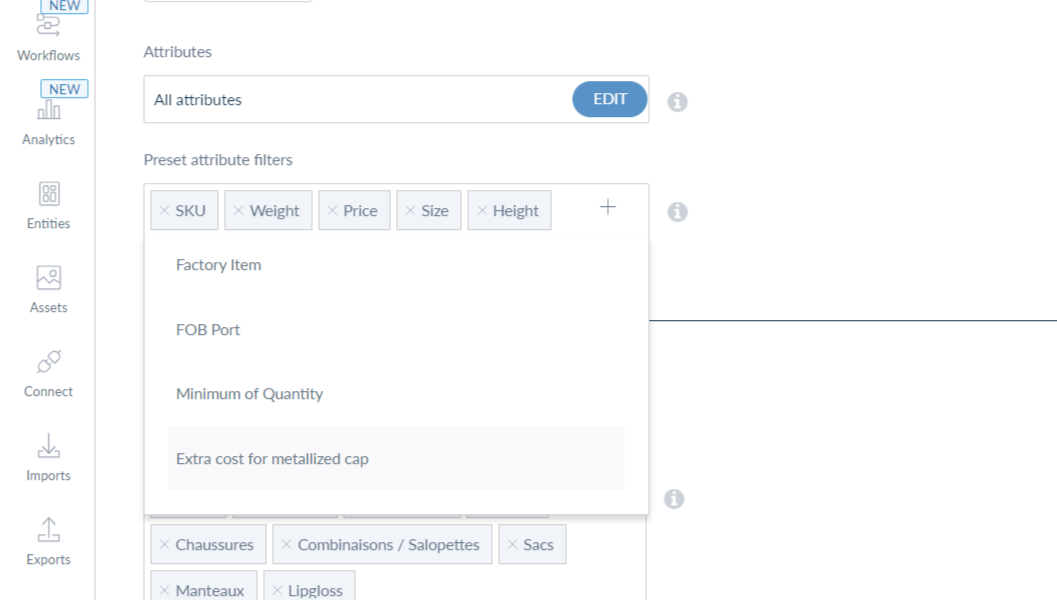
The screenshot above shows the Preset attribute filters field in the Shared Catalog Content tab, with multiple attributes selected to be pre-set as recipient-facing filters.
You can preset up to 50 attributes as filters in a Shared Catalog.
Only attributes selected for export can be preset as filters.
Filter on products
Filter by families
By default, the family filter is empty, meaning all products appear in your Shared Catalog regardless of their Family, including products with no Family.
Add a family
Click the dropdown and select the Families you want to include.
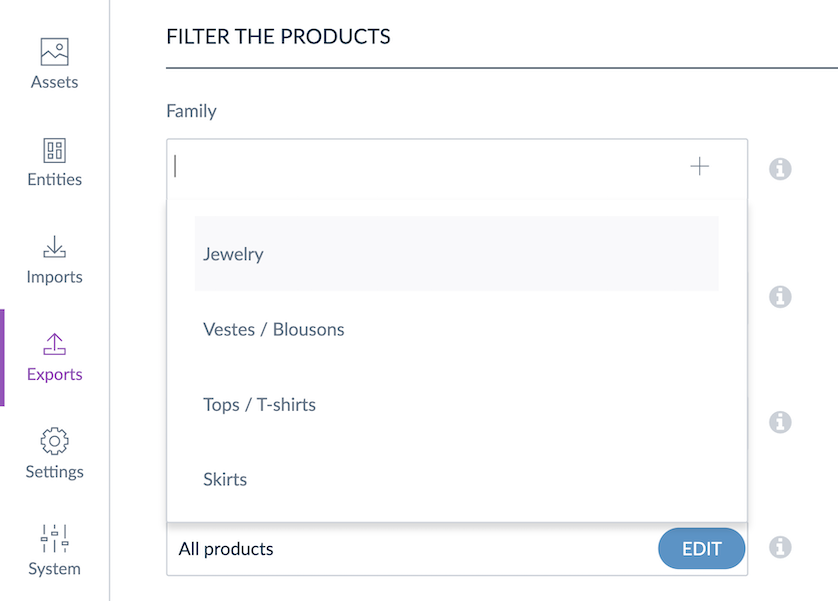
The screenshot above shows the family filter dropdown in the Shared Catalog Content tab, with one or more Family values selected.
Remove a family
Click the cross next to the Family label. Products in that Family are no longer included in the Shared Catalog.
Filter by product status
You can filter by product status. Three options are available:
- All -- displays all products regardless of status.
- Enabled (default) -- displays only enabled products.
- Disabled -- displays only disabled products.
Filter on the completeness for product export
The completeness dropdown lets you filter which products are exported based on their completeness for the selected locales. Four options are available:
- No condition on completeness -- all products are included regardless of completeness.
- Complete on at least one selected locale (default) -- products must be complete on at least one of the selected locales.
- Complete on all selected locales -- products must be complete on every selected locale.
- Not complete on all selected locales -- products must be incomplete on at least one of the selected locales.
Example: With 4 products and 2 selected locales (fr_FR and en_US):
| Product | fr_FR | en_US |
|---|---|---|
| Product A | Complete | Incomplete |
| Product B | Incomplete | Complete |
| Product C | Complete | Complete |
| Product D | Incomplete | Incomplete |
Displayed products per completeness option:
- No condition on completeness -- A, B, C, D
- Complete on at least one selected locale -- A, B, C
- Complete on all selected locales -- C only
- Not complete on all selected locales -- D only
Filter on categories
In the Content tab, click Edit next to the Categories filter. The category tree linked to the selected channel is displayed.
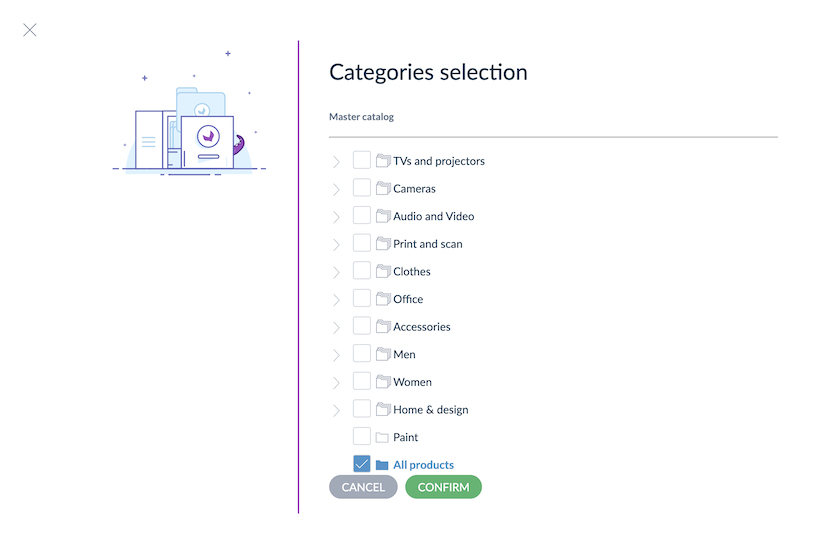
The screenshot above shows the category tree in the shared catalog Content tab, with expandable categories and subcategories. An "All products" button at the top resets the selection.
Click the arrow next to a category to expand or collapse it and see its subcategories. You can select a parent category and its subcategories, or only specific subcategories.
Click All products to reset the selection and include all categories.
By default, only categorized and enabled products are displayed in Shared Catalogs. Unclassified products are not included.
The category tree shown in the Content tab is the tree linked to the channel you selected. To use products from a different category tree, change the selected channel or update the channel settings. See Manage your Channels for details.
Selecting a parent category does not automatically select its subcategories. Select all relevant categories explicitly to avoid an empty catalog.
Filter on the quality score
The quality score filter has two dropdowns that work together:
Quality score
Choose which Quality Score values to include:
- No condition on Quality Score (default) -- all products are included regardless of their Quality Score.
- A, B, C, D, E -- select one or more scores to include only products with those Quality Score values.
Export quality score(s) for
Choose how the score condition is applied across locales:
- At least one locale -- products are included if they match the selected Quality Score on at least one of the selected locales.
- All selected locales -- products are included only if they match the selected Quality Score on every selected locale.
Filter on product identifiers
You can limit your shared catalog to specific products by adding their identifiers to the Identifier field. You can paste a list of identifiers directly -- separate them with a comma, a space, or a line break.
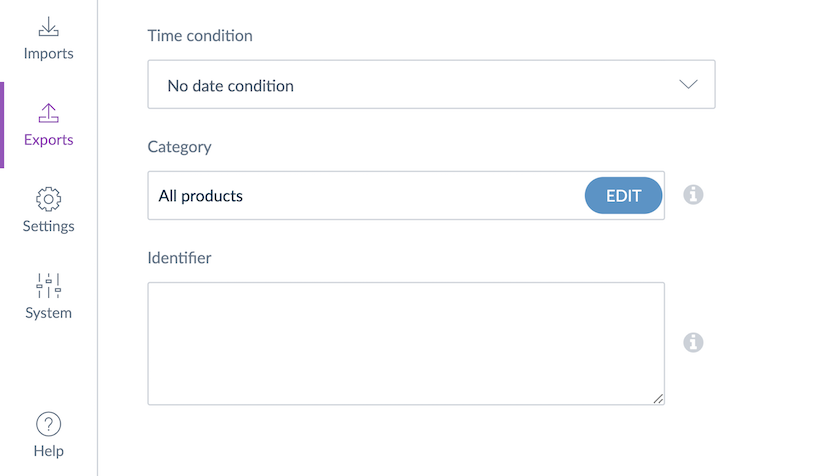
The screenshot above shows the Identifier filter field in the shared catalog Content tab, where product identifiers can be typed or pasted to restrict the product selection.
You can copy a list of identifiers from a CSV or Excel file and paste it directly into the identifier field.
Filter by attribute values
Click Add attributes on the right side of the Content tab to add any attribute as a filter for the product selection.
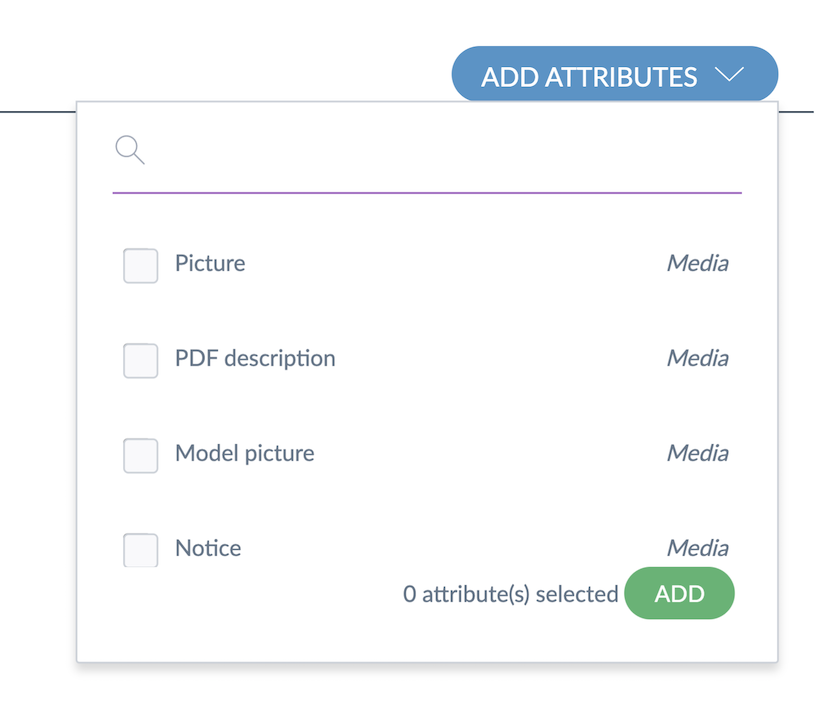
The screenshot above shows the Add attributes dropdown in the shared catalog Content tab, listing available attributes that can be added as product selection filters.
After selecting an attribute, it appears in the Filter the data area, above the identifier field. Each attribute comes with a set of operators. For example, text area attributes offer these operators:
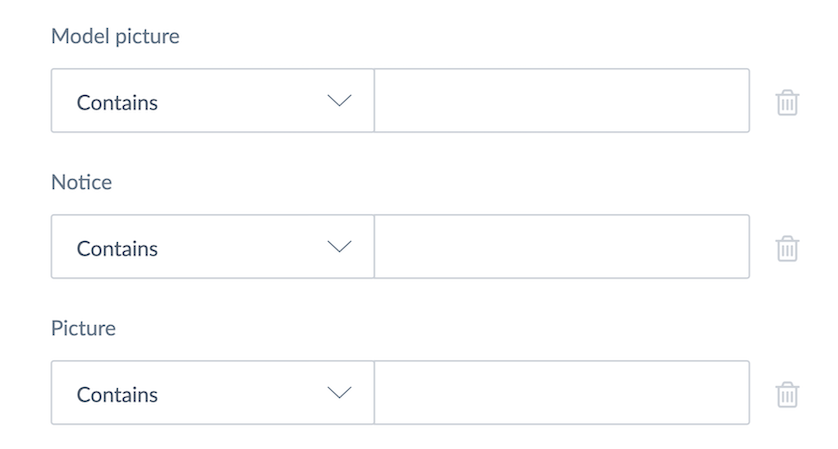
The screenshot above shows the operator options available for a text area attribute filter in the shared catalog Content tab.
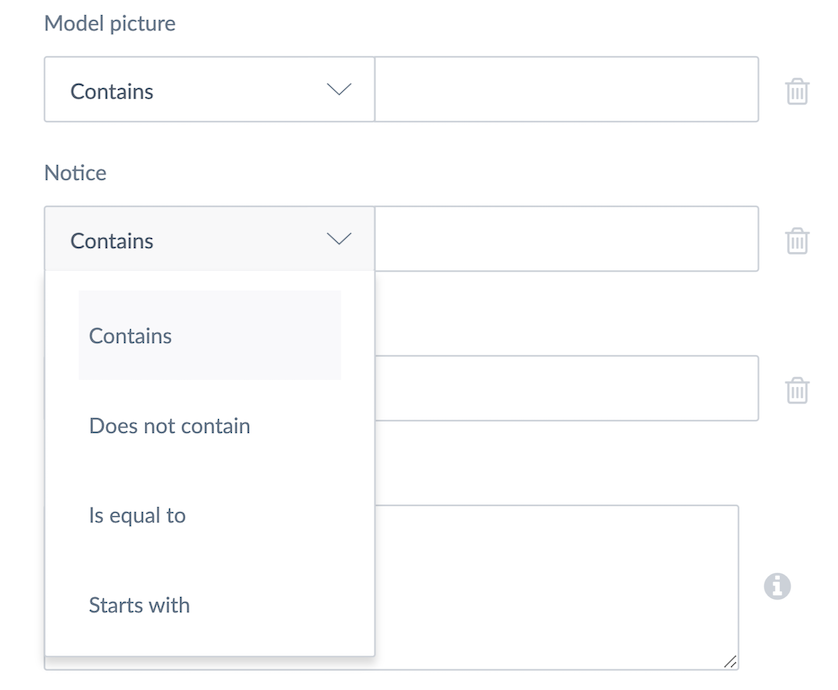
The screenshot above shows the value field for a selected operator on a text area attribute filter.
Any attribute created in the PIM can be added as a product selection filter in the Content tab. Each attribute can only be used once as a filter.
After configuring your shared catalog, if you remove products from a category that was previously included, the category remains visible in the filter list. The same applies to Association Types, Attributes, and Attribute Groups.