


Overview
Association types are used to link products and Product Models together.
For example, you can link a product to its accessories. The code for this association type could be “ACCESSORIES”.
This article covers manual association types, where you pick each associated product yourself. There are three of them:
- The 1-way association (when product A is associated with product B).
- The 2-way association (when product A is associated with product B, then product B will be automatically associated with product A).
- The association with quantities (when product A is associated with 2 quantities of product B and with 3 quantities of product C).
Looking for compatibility or fitment? Automatic associations link products for you with a rule based on Attribute values, for example the cases that fit a given phone. They are also managed in Settings > Association types and are available for Premium customers.
Learn more about this capability with the dedicated article Manage product compatibility.
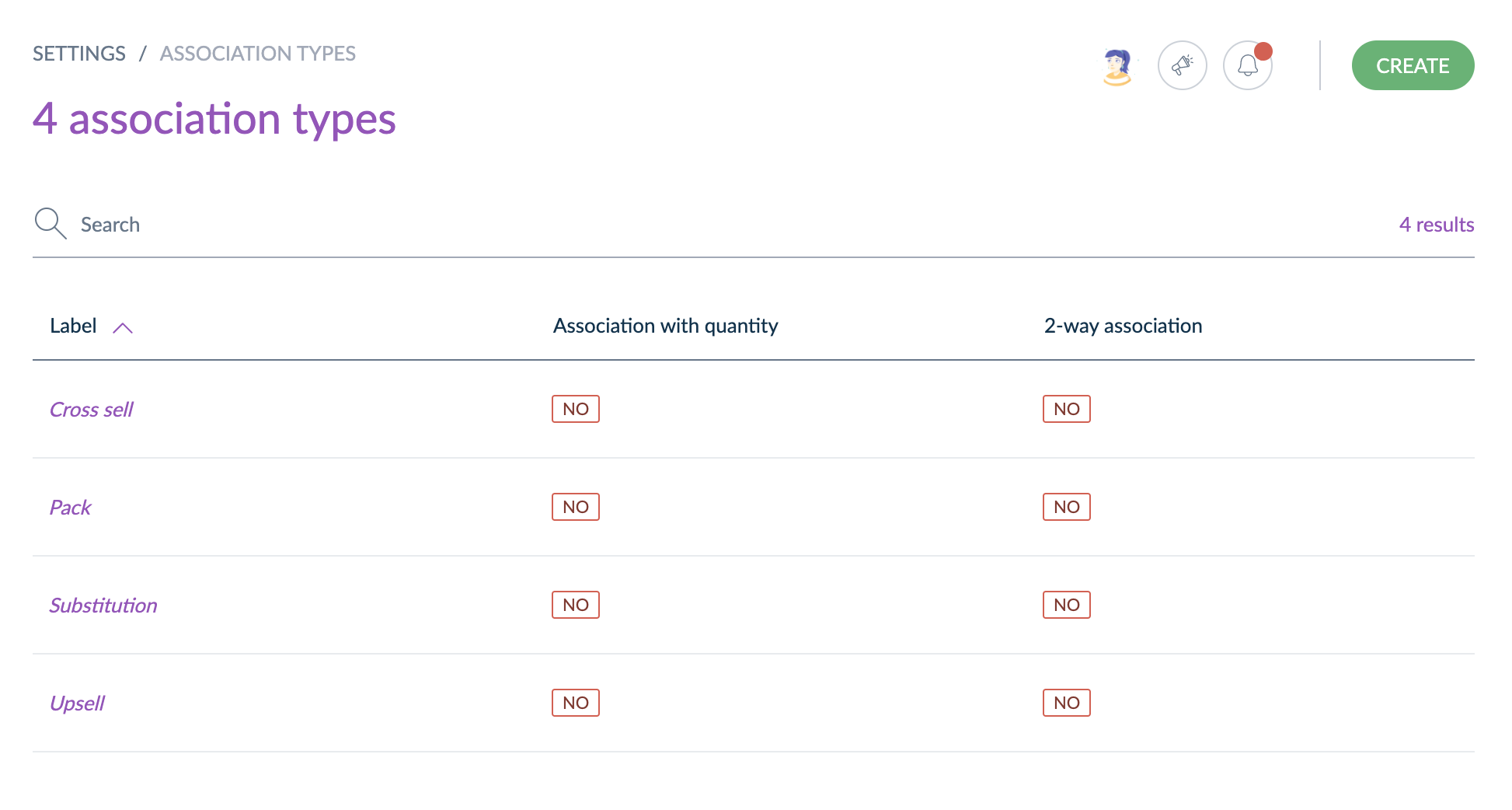
Once you have created an association type, you can use it when you edit a product, in the Associations tab. See Associate your products and Product Models.
🎓 Want an interactive walkthrough to go deeper?
Join our training to explore Product Compatibility, understand use cases, see how it works, and practice in a real test environment: Start the course.
Create an association type
You must have permission to create an association type from the PIM.
When you click Create, a dropdown lets you choose between Manual and Automatic. Select Manual to follow the steps below. To create an Automatic association for Product Compatibility, select Automatic. This option is available for Premium customers, learn more with our dedicated article Manage product compatibility.
Create a 1-way association type
- Go to Settings > Association types.
- Click Create and select Manual.
- Fill in the code of the association type you want to create.
- Click Save.
The association type has now been created and the edit page is displayed.
You can only edit the labels.
Create a 2-way association type
- Go to Settings > Association types.
- Click Create and select Manual.
- Fill in the code of the association type you want to create.
- Set the 2-way association switch to “Yes”.
- Click Save.
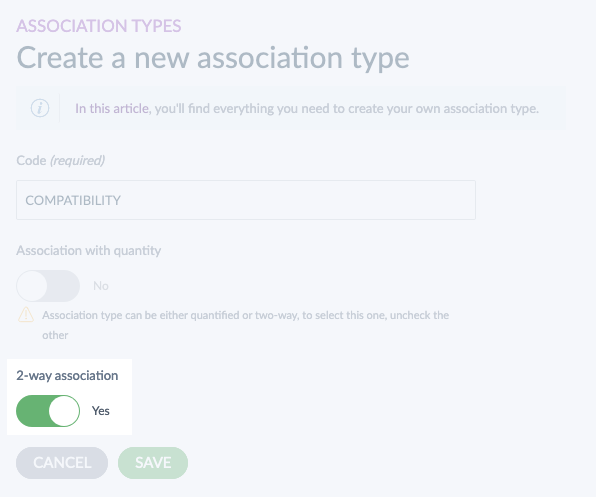
The association type has now been created and the edit page is displayed.
You can only edit the labels.
The 2-way association property cannot be updated once the association type is created.
Create an association type with quantities
- Go to Settings > Association types.
- Click Create and select Manual.
- Fill in the code of the association type you want to create.
- Set the Association with quantity switch to “Yes”.
- Click Save.
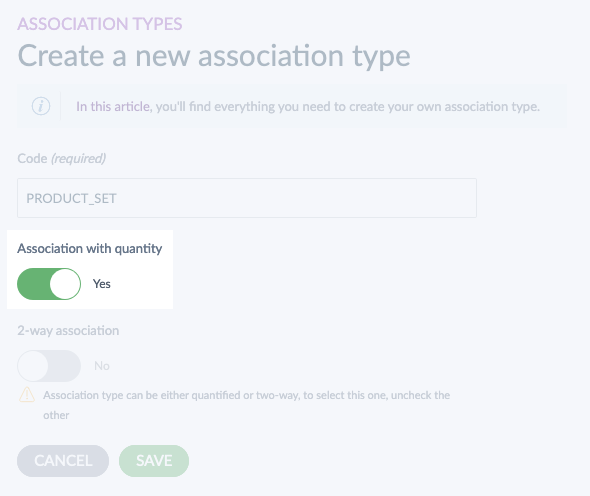
The association type has now been created and the edit page is displayed.
You can only edit the labels.
The association with quantities property cannot be updated once the association type is created.
Edit an association type
- Go to Settings > Association types.
- Click the association type you want to edit in the grid. The edit form appears.
- Edit the labels.
- Click Save.
You cannot change the code once you created the association type.
You cannot change a manual association type to a 2-way association or to an association with quantities, or the other way around.
These restrictions apply to manual association types only. You can update the rule of an Automatic association after you create it. See Manage product compatibility.
Delete an association type
- Go to Settings > Association types.
- Click the association type you want to delete in the grid.
- Click Delete.
- Confirm the action in the validation message.
The association type is then deleted.
When you delete an Automatic association, its compatible products are no longer displayed in the Product Edit Form, in the product grid or in the API. See Manage product compatibility.
Check the association type history
Changes made on association types are recorded and visible in the History tab of the association type.
For each change, a version of the association type is created. The following information is tracked for each version:
- The person or system that generated the changes
- The date and time (up to seconds) at which the changes took place
- The old value and the new value of each modified field
To view the versions of an association type:
- Open the association type.
- Click the History tab. The list of versions is displayed.
Choose the right way to link products
If you need to link products to each other, use this table to choose between a manual association type, an Automatic association (Product Compatibility), a Single Product Link Attribute, and a Table Attribute with a Product link column.
To learn more about the last two options, see Manage composable products in the PIM.
|
Manual associations |
Automatic associations (Compatibility) |
Single Product Link Attribute |
Table Attribute with a Product link column |
|---|---|---|---|---|
Question it answers |
What do we want to sell alongside this product? |
What does this product technically fit? |
Which single product goes with this one? |
Which products make up or complete this one? |
Key benefits |
Full manual control over the products selected, several types to break results down by usage, quantities with the quantified type, and a shareable Associated with filter in the product grid |
Automatic linking once the conditions are set up, and no limit on the number of compatible products |
Single product enforcement, visible in the Product Edit Form, can be localizable and scopable, and can count towards Completeness |
Additional information for every linked product, can be localizable and scopable, can count towards Completeness, and backlinks between products |
Where it is configured |
Settings > Association types, Manual |
Settings > Association types, Automatic |
Settings > Attributes, type Product link, then the Family |
Settings > Attributes, type Table with a Product link column, then the Family |
Where it is filled in |
Product Edit Form, Associations tab, or by import or API |
Nothing to fill in, results are computed from the rule and shown in the Associations tab of every matching product |
Product Edit Form, in the Attribute field |
Product Edit Form, in the Table Attribute |
Nature of the data |
Stored, fixed matches between products |
Dynamic, recalculated as the catalog changes |
Stored as an Attribute value |
Stored as an Attribute value. Lines are removed automatically when a linked product is deleted |
Extra data carried |
Quantity, with the quantified type |
None |
None |
Metadata columns: measurement, text, date, boolean |
New products covered automatically |
No |
Yes, when they match the rule |
No |
No |
Direction |
1-way or 2-way |
1-way or 2-way |
1-way, with a backlink on the target |
1-way, with a backlink on the target |
Main limits |
The type (1-way, 2-way, with quantities) cannot be changed after creation |
Some Attribute types cannot be used in conditions, such as Price, Image, Table, File and Asset collection. Lists and grid filters display up to 10,000 products |
One product per Attribute value, and no metadata on the link |
100 Table Attributes per PIM, first column must be a select, a Reference Entity, an incremental number, or a Product link, and duplicate entries allowed outside the first column only |
Typical use case |
Cross-sell, up-sell, packs, you might also like |
Fitment: rims and vehicles, cases and phones, mounts and TVs |
A camera and its charger, a handbag and its replacement strap |
A cosmetic product and the ingredients that are SKUs in the PIM |