


Export your data
This feature allows you to provide your product information to third parties like e-commerce platforms, mobile applications, or suppliers, or simply to extract information from the PIM for your own use.
You have two ways to export your data:
- Manual download: execute the job from the PIM user interface, then download the generated file.
- Automatic delivery: set a file path in the export profile configuration so the PIM drops the file automatically when the job runs.
When exporting data, Akeneo PIM extracts data from the PIM and converts it into a specific format, either as a file or directly to a third-party application (e.g., Magento). Exports support two file formats: CSV and XLSX.
You can export product data and catalog entities such as Families, Categories, and Attributes.
Category exports (CSV/XLSX) can now be scoped to specific categories instead of always exporting every category. Check the section Filter Categories to export for more information.
To configure product, product model, or combined product and product model export profiles see the Export your product and product model data article.
Steps of an export
The export process is straightforward:
- Create an export profile (see below for more information)
- Launch a CSV or XLSX file export
What is an export profile?
An export profile defines how an export will be performed. Each profile is based on:
- A code to uniquely identify the profile
- A job that defines what will be exported and in which format (e.g., a Category export in XLSX, a product export in CSV for Magento)
- A set of configuration fields available as a form in the PIM. Each profile can have its own configuration.
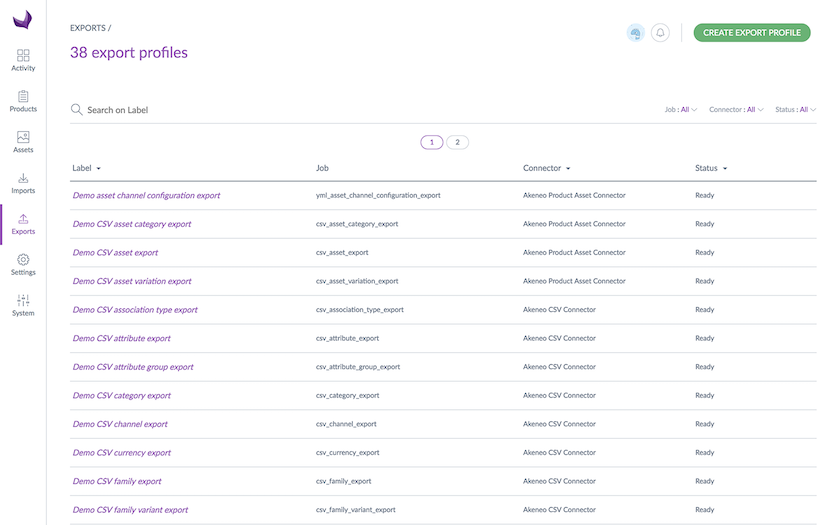
Browse your export profiles
To view the available export profiles:
- Log in with a user account with permission to View the list of profiles for exports
- Go to the Exports menu
- To narrow down the list of displayed export profiles, use the available filters above the grid or the search bar (searches on the label)
To see the details of an export profile, click on the relevant row in the grid.
Create a new export profile
To create a new export profile:
- Log in with a user account with the Create an export profile permission
- Go to the Exports menu
- Click Create export profile
- Fill in all required fields in the pop-up window:
- A unique code
- A label to identify the profile more easily
- A job according to what you wish to export
- Click Save to finalize the profile creation
Update an export profile
To update an export profile:
- Log in with a user account with the relevant permissions
- Go to the Exports menu
- Click on the export profile to modify
- Click Edit
- Make your changes
- Click Save to update the profile
In the General properties tab, you can edit the label of your profile. In the Global settings tab, available properties depend on the export job.
For product, product model, and combined export profiles, see Export your product and product model data for the full list of available settings.
If a user has no role permission to modify an export profile, any Enterprise Edition user group rights they may have will also be ignored. For example, a user without the Edit profiles of exports permission cannot edit a specific export profile even if their user group grants it.
Filter categories to export
When exporting categories (Category export, CSV or XLSX), you can now scope the export to specific categories instead of exporting every category from every tree in one file.
To filter your export:
- Open your Category export profile and click Edit.
- Go to the Content tab.
- In the categories field, open the category selector.
- Browse your category tree(s) and select the categories you want to export. For each selection, choose whether to include its subcategories.
- Apply your selection and Save the export profile.

If you leave the filter empty, the export includes every category across all trees, as before.
Duplicate an export profile
To create a new profile based on an existing one:
- Select the export profile to duplicate
- Click Edit
- In the top right corner, click ... and select Duplicate
- Enter a label and a code, then click Save
Download and upload an export profile
To copy an export profile from one instance to another (e.g., from staging to production), you can download its configuration and import it into a new profile on the target instance.
Download an export profile configuration:
- Select the export profile to copy
- Click Edit
- In the top right corner, click ... and select Download Profile Configuration
Upload the configuration to another instance:
- Create a new profile on the target instance
- Click Edit
- In the top right corner, click ... and select Import Profile Configuration
- Upload the configuration file you downloaded
This functionality is available for:
- Tailored export
- Product export
- Product model export
Permissions and properties are not included in the downloaded configuration.
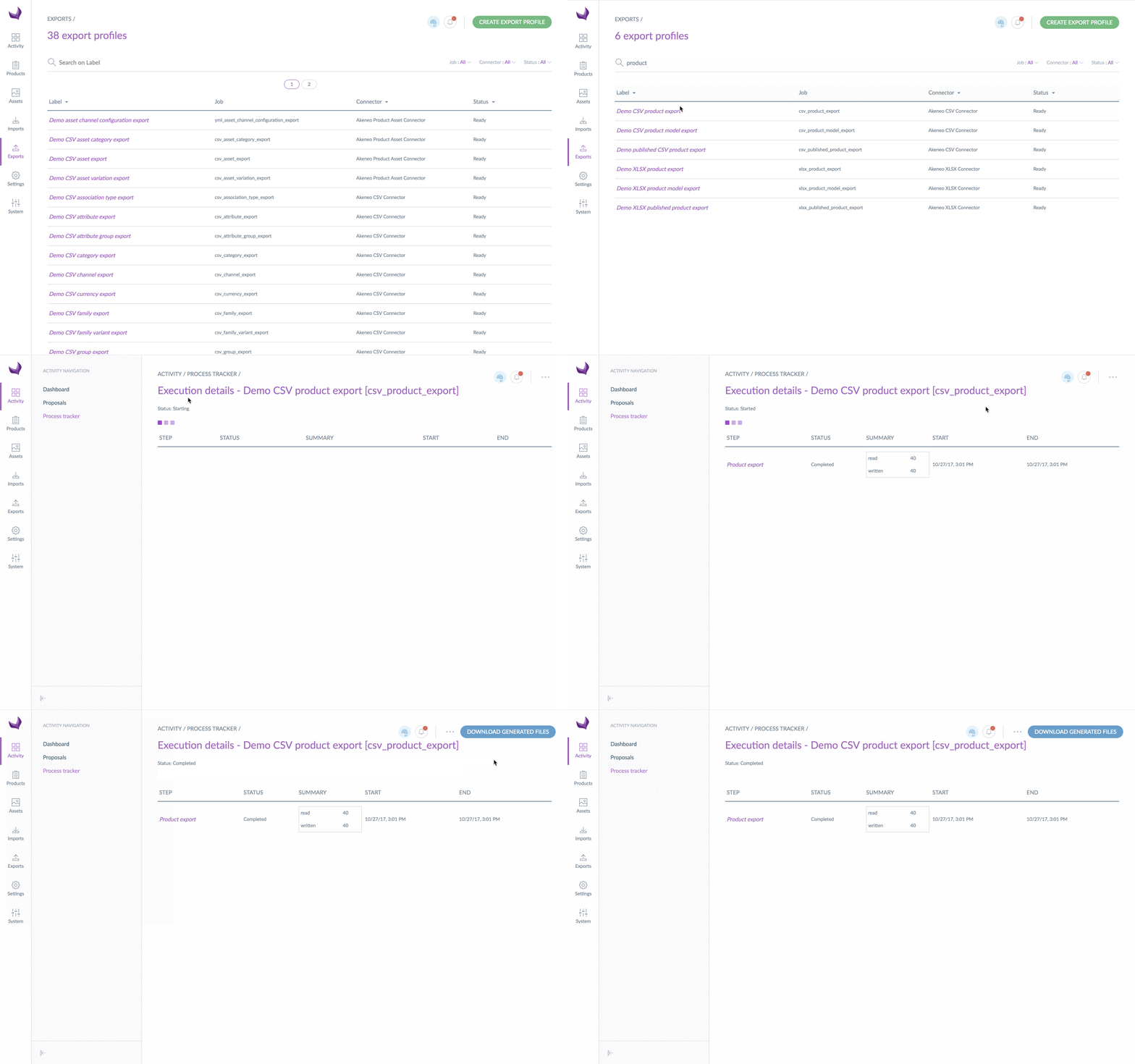
Run an export
- Go to the Exports menu
- Click on the export profile to execute
- Click Export now
- The execution page displays and refreshes automatically so you can monitor progress
When the export ends, a notification appears in the top right corner of the PIM. An email notification can also be sent depending on your user configuration. For further details, please refer to the Manage your account article.
Rights on export execution (Enterprise Edition only)
Execution permissions can be configured per export profile. If you cannot launch an export, check that you have the right to run it in the Permissions tab of the export profile in edit mode. See the Access rights on imports/exports article for more details.
For rights on exported product data (Categories, Attribute Groups, Locales), see the User group rights on product data section of the Export your product and product model data article.